Create. Save.
Pick up where you left off.
Create with ChatGPT, deliberately save drafts and materials, then resume from your private library.
ChatGPT is your studio.
This is your bookshelf.
There is no separate AI editor on this website. Writing, illustration and editing happen in your own ChatGPT conversation.
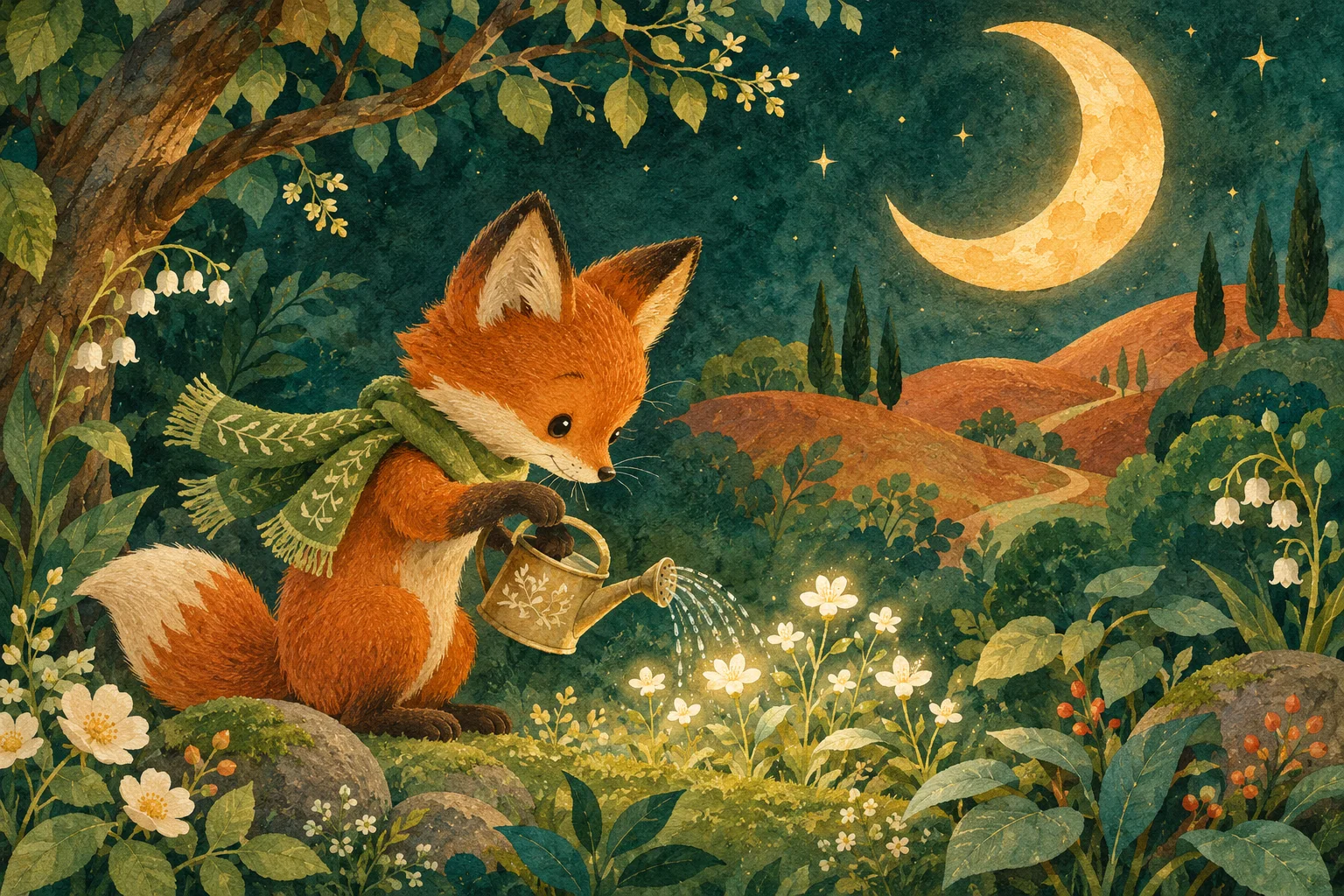
The Moon Garden
Draft · Illustration · Project notes
Create and edit in ChatGPT. Here you can inspect saved work, download files, restore a version or remove a project.
Explore the sample project →Create and edit in your ChatGPT conversation.
1. Connect your library
Create an AI Publishing account and follow our custom MCP connection guide to connect it through ChatGPT’s secure sign-in flow. You approve access to the library. You can revoke that connection from your account at any time.
2. Make the publication in ChatGPT
Use a publishing skill to develop an outline, text and visual direction. ChatGPT’s native tools do the creative work; this service does not call paid AI APIs or run a separate writing engine.
3. Choose what to save
Ask to save the current draft to a named project. Save selected illustrations, photographs or export files separately as materials. Check the version or file receipt. A generated file is not automatically an archived file.
4. Return with context
In another conversation, open your saved project. Its approved draft, decisions, references and next steps give you a starting point. Older drafts remain available as versions; restoring one creates a new version.
5. Download a copy
The library gives you private downloads and a project-data export. Free projects expire thirty days after creation, even if you edit them later. Keep your own backup of finished work.
Your next book
starts with a conversation.
Create in ChatGPT. Keep the parts that matter.
Start your next chapter Free MVP · 3 projects · No payment details